Login to Zoom as an MM Host/Facilitator
If you are familiar with hosting Zoom meetings, you may already know this information.
- Login as a Host/Facilitator versus login as a participant.
In order to Facilitate the meeting instead of just being a Participant, you must Login as a Host.
You may need to logout of your personal Zoom account in order to login to the MM Zoom account.
You must use the MM login to get in to Host the MM meeting. Upon completion of this training, you’ll be provided with access to the spreadsheet that includes the Login IDs and passwords for all MM meetings.
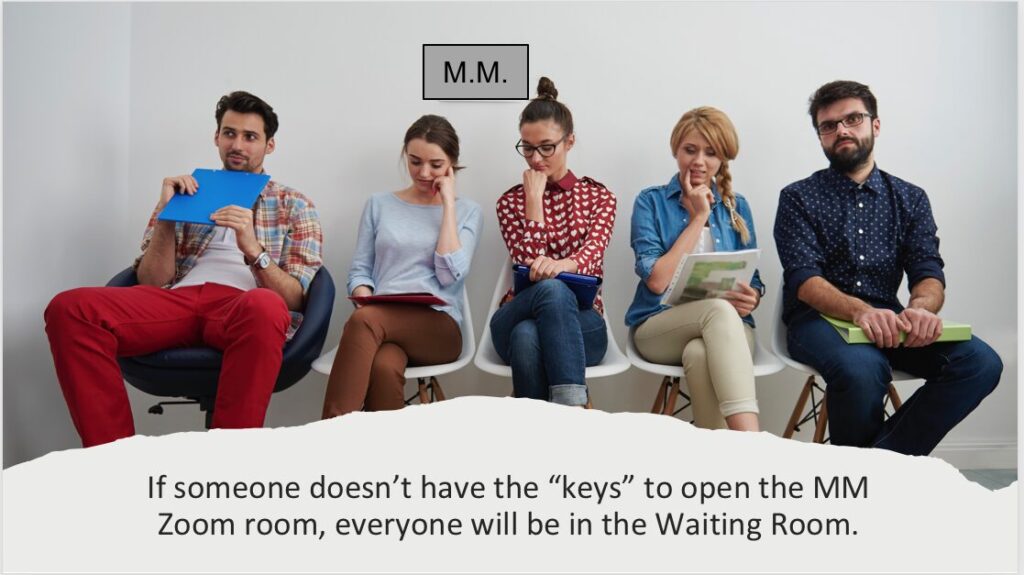
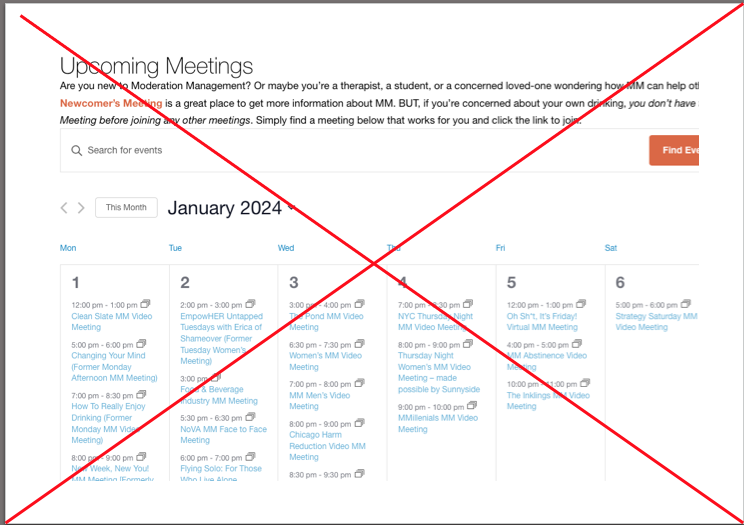
If you login through the link on the MM website, you will be loged in as a Participant. You will be put in the waiting room waiting for someone to “open” the meeting. It’s like standing outside a locked room waiting for someone to let you in. When hosting a meeting, you are the one who has the key (the correct login) to open the door to the meeting.
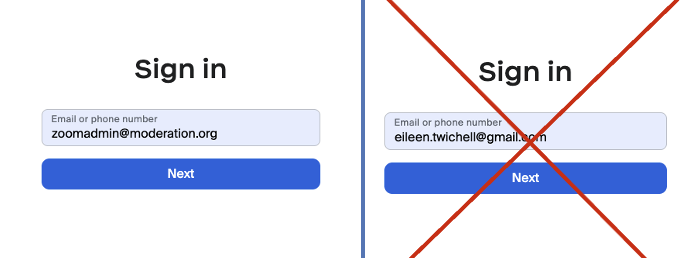
When you open Zoom, it will probably default to your email. If you sign in with your personal or work email you will not have access to the MM meetings. You must sign out or delete this information and put in the MM login information.
NOTE: We highly recommend that you open meetings from your desktop or laptop computer, as opposed to using the Zoom app on your mobile device. While your phone can be used in a pinch, it is more difficult to find and use the various facilitator features you’ll need to properly host the meeting.
2. Multiple Zoom Logins
MM has multiple Zoom logins which are used to cover all the various meetings. It is essential to have the correct login for the meeting you are hosting. For example, the 7:00 pm Tuesday Reflections meeting has the same login as Friday Absers meeting BUT the 7:00 pm Tuesday Absers meeting has a different login.
Upon completion of this course, you will be provided with a link to the MM Zoom Meeting information page. All the Zoom login IDs and passwords are listed there.
When you get into Zoom:
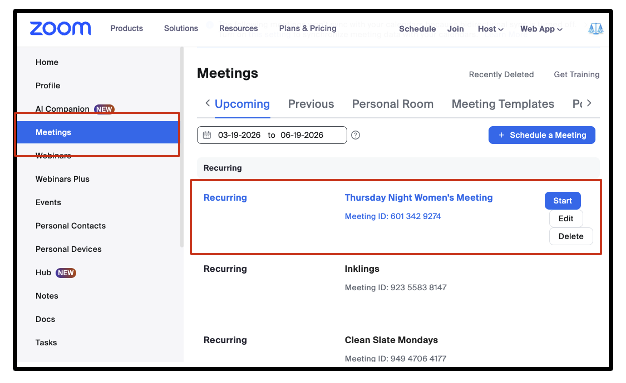
- On the LEFT side menu, Click on Meetings.
- The list of meetings using that login will appear on the right hand side
- When you hover over the meeting the buttons to Start, Edit or Delete will appear.
- Click Start for the appropriate meeting.